
Top Popular Photo Editing Tools for Creatives
TECHNOLOGYFEATURED
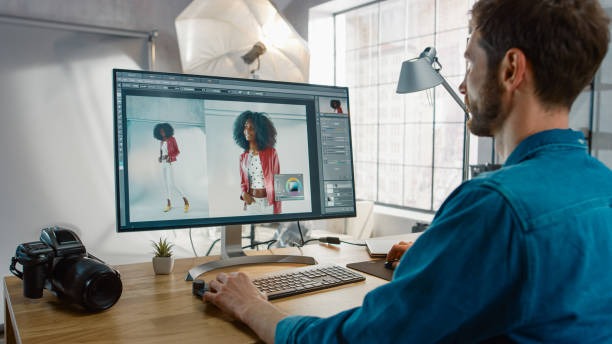

The best photo editing tool for you will depend on your individual needs and preferences. If you are a professional photographer, you may need powerful software like Adobe Photoshop or Affinity Photo. If you are a beginner or on a budget, you may want to try a free or less expensive software like GIMP or Snapseed.
No matter which photo editing tool you choose, it is important to experiment with the different features and learn how to use them effectively. This will help you to create beautiful and professional-looking photos.
5 Photo Editing Tools That Are Popular Among Photographers and Graphic Designers
Adobe Photoshop is one of the most widely used photo editing tools by both photographers and graphic designers. Whether you’re adjusting the exposure of a photo, creating complex digital artwork, or retouching images, Photoshop offers an incredible level of flexibility. It’s particularly favored for tasks such as color correction, creating layered compositions, and manipulating graphics with precision. Professionals use it for everything from basic touch-ups to creating intricate designs and photo composites, making it a versatile choice for almost any visual project.
Pros:
Powerful Editing Tools: Photoshop provides a vast array of tools and features, from advanced filters and brushes to detailed retouching options. It allows for precise control over every element of your image.
Endless Creative Possibilities: Whether you’re working on photography or graphic design, Photoshop allows you to unleash your creativity, offering infinite ways to manipulate and enhance images.
Industry Standard: As the go-to software for most professionals, Photoshop is essential for collaboration in many industries, and its file compatibility ensures that your work can be shared across different platforms and programs seamlessly.
Support for Plugins and Extensions: Photoshop has a massive library of plugins and extensions that can help streamline workflow and add new features, further enhancing its capabilities.
Cons:
Steep Learning Curve: Due to its comprehensive set of tools, beginners might find Photoshop overwhelming at first. It requires time to master, which can be frustrating for new users.
Cost: Photoshop is subscription-based, which can become expensive over time, especially for freelance photographers or designers on a budget. The cost may not be justified for casual users who only need basic editing tools.
Resource Heavy: The software demands a lot of system resources, meaning that older computers or lower-end devices may experience lag or performance issues when using Photoshop for more complex tasks.
Not Ideal for Simple Edits: While Photoshop is great for detailed work, it can feel like overkill for basic photo edits like cropping or adjusting brightness. Simpler tools may be more efficient for these types of tasks.
Overall, Adobe Photoshop remains a staple in the world of photography and design because of its immense power and versatility. However, its complexity and cost might make it less appealing to beginners or those who only need to perform simple edits.


Affinity Photo is a popular alternative to Adobe Photoshop, especially for those who need powerful photo editing tools without the subscription cost. It’s used by photographers, graphic designers, and digital artists for tasks ranging from photo retouching to creating intricate designs. Many people appreciate it for tasks like layer-based editing, blending modes, and HDR imaging. Whether you’re enhancing photos for a client or working on a creative project, Affinity Photo’s professional-grade features make it a great choice for individuals looking for a robust yet affordable editing tool.
Pros:
One-Time Payment: Unlike Photoshop, which requires a monthly subscription, Affinity Photo offers a one-time payment, making it more affordable in the long run for users who don’t want to commit to ongoing fees.
User-Friendly Interface: Affinity Photo has a clean, intuitive interface that makes it easier to learn than Photoshop, while still offering a wide range of advanced features.
Non-Destructive Editing: Like Photoshop, Affinity Photo allows for non-destructive editing, meaning you can make changes to your images without permanently altering the original file. This is great for experimenting without worry.
Advanced Features at a Lower Price: Affinity Photo has many of the same powerful features as Photoshop, such as support for PSD files, advanced masking tools, and the ability to work with 360-degree images, all at a much lower price point.
Cons:
Learning Curve for New Users: While the interface is more user-friendly than Photoshop, new users might still find it challenging to master the full range of tools and features. It takes time to learn all the advanced options.
Limited Mobile Version: While Affinity Photo is available for both Mac and Windows, the mobile version (for iPad) has some limitations compared to the desktop version, which could be a downside for those who prefer to work on multiple platforms.
Smaller User Base: While the software has been growing in popularity, Affinity Photo still doesn’t have the same large user base as Photoshop. This means fewer tutorials, plugins, and community resources to rely on.
Occasional Bugs: Some users report occasional bugs or performance issues, especially with complex files or large image editing projects. Though updates have been frequent, some of these issues may persist for certain users.
Overall, Affinity Photo is an excellent choice for those who need a powerful, cost-effective photo editing tool without the commitment of a subscription. It’s perfect for professionals and hobbyists alike who want a high-quality editing experience at a fraction of the cost of Photoshop. However, like any software, it does come with a few limitations and a bit of a learning curve.


GIMP (GNU Image Manipulation Program) is a free, open-source photo editing tool that’s popular among photographers, designers, and illustrators looking for a powerful alternative to paid software. With a range of features similar to Adobe Photoshop, GIMP can be used for tasks like image manipulation, retouching, and digital painting. It supports advanced editing techniques such as layers, masks, and filters, making it a solid choice for users who need a comprehensive tool for image editing but don’t have the budget for premium software. Whether you’re making simple adjustments to photos or creating complex artwork, GIMP offers a wide range of editing options.
Pros:
Free and Open Source: One of the biggest advantages of GIMP is that it’s completely free to use, making it an excellent option for students, freelancers, or hobbyists who need high-quality editing tools without paying for software.
Highly Customizable: GIMP’s open-source nature means it can be customized with plugins and extensions to suit specific needs. This flexibility allows users to tailor the software to their unique workflows.
Wide Range of Tools: GIMP offers many of the same advanced features as paid software, such as support for layers, advanced color correction, filters, and photo manipulation tools. It’s a versatile program for those who need robust editing options.
Cross-Platform Compatibility: GIMP works on Windows, Mac, and Linux, making it accessible to a wide range of users across different operating systems.
Cons:
Steep Learning Curve: While GIMP offers powerful features, its interface and functionality can be overwhelming for beginners. New users may find it challenging to learn, especially without the support of a clear, intuitive layout.
Limited Support for Some File Formats: Although GIMP supports many common file formats, it doesn’t handle some proprietary file types, like PSD, as seamlessly as other editing software. Opening and editing PSD files may require additional workarounds.
Performance Issues with Large Files: GIMP can struggle with large image files or high-resolution projects, especially on lower-end hardware. Users may experience lag or slowdowns when working with complex compositions.
Less Polished User Interface: Compared to more polished, commercial tools like Photoshop, GIMP’s interface can feel less streamlined and a bit dated. While it’s functional, it doesn’t have the same level of user experience refinement.
In summary, GIMP is an excellent choice for anyone looking for a free, open-source alternative to paid photo editing software. It’s packed with advanced features and offers a level of customization that many professionals will appreciate. However, its learning curve and some of its limitations in performance and file compatibility might make it a bit challenging for beginners or those accustomed to more user-friendly platforms.


Photoshop Elements is a simplified, more accessible version of Adobe Photoshop, designed for hobbyists, beginners, and those who don’t need the full suite of professional tools that Photoshop offers. It’s perfect for photographers who want to enhance their images with ease, as well as those who enjoy creating simple graphics and designs. Photoshop Elements allows for quick photo edits like cropping, resizing, and applying filters, as well as more advanced features like layer-based editing and guided edits that walk you through complex adjustments. It’s a great tool for personal or semi-professional projects where you want high-quality results without the steep learning curve of the full Photoshop version.
Pros:
User-Friendly Interface: Photoshop Elements is designed with ease of use in mind, making it a great choice for beginners or those who don’t need the complex features of Adobe Photoshop. Its intuitive layout and guided editing options help users quickly grasp the basics.
Affordable: Compared to the full version of Photoshop, Photoshop Elements is much more budget-friendly. It’s a one-time purchase, with no subscription required, making it an excellent value for users who need essential editing tools without the high cost.
Powerful Editing Tools: Despite being a more basic version, Photoshop Elements still includes many advanced features such as content-aware editing, smart organization, and various creative filters. You can achieve professional-quality results with ease.
Excellent for Organizing Photos: Photoshop Elements includes a photo organizer, which helps you manage and tag your images, making it easier to sort and find photos for future projects.
Cons:
Limited Features Compared to Photoshop: While Photoshop Elements offers many great tools, it doesn’t have the full range of advanced features that Photoshop offers, such as advanced layer management, 3D editing, or detailed text effects. It’s not ideal for professionals who require those capabilities.
Less Control Over Complex Edits: For those looking for more in-depth control over their photo manipulation, Photoshop Elements may feel restrictive. The simplified interface might limit users who want to fine-tune every detail of their images.
Limited File Compatibility: While Photoshop Elements can handle many common file types, it doesn’t offer the same level of file format compatibility as the full version of Photoshop. Some specialized file types, like advanced PSD features, might not be fully supported.
Lack of Customization: Unlike more advanced photo editing programs, Photoshop Elements doesn’t offer much in terms of customization. Users can’t install as many third-party plugins or extensions as they could with the full version of Photoshop.
Overall, Photoshop Elements is a fantastic tool for beginners, hobbyists, or those who want an easy-to-use editing solution that still offers powerful features. It strikes a good balance between user-friendliness and functionality, making it a solid choice for anyone looking to enhance their photos or create simple designs without the complexity of a professional-grade program. However, those who need more control and flexibility may find the software a bit limiting.
Adobe Lightroom is a favorite among photographers, particularly those who focus on photo editing rather than graphic design. It excels in organizing, editing, and enhancing large collections of images, especially for batch editing and fine-tuning. Photographers use Lightroom for tasks like adjusting exposure, correcting color balance, applying presets, and making non-destructive edits to raw files. Its powerful organizational tools, like keyword tagging and rating systems, also make it ideal for managing thousands of images in a streamlined workflow. Lightroom is perfect for those who want professional-grade edits without getting bogged down in complex graphic design work.
Pros:
Non-Destructive Editing: Lightroom allows you to make edits to your images without permanently altering the original files. This feature is crucial for photographers who want to preserve their original work and try different edits without the risk of losing data.
Excellent for Batch Editing: Lightroom shines when it comes to editing multiple images at once. The ability to apply adjustments to a whole set of photos quickly makes it invaluable for photographers who need to process a large number of images in a short amount of time.
Intuitive User Interface: The layout of Lightroom is clean, organized, and focused on the needs of photographers, with separate modules for Library, Develop, and Export. The interface is simple to navigate, making it easy for both beginners and professionals to work efficiently.
Powerful Organizational Tools: Lightroom's organizational features, like keyword tagging, star ratings, and collection sets, make it easy to manage large volumes of photos. This is especially useful for photographers with extensive portfolios who need to keep everything organized and accessible.
Cons:
Limited Graphic Design Features: While Lightroom excels at photo editing and management, it doesn't have the graphic design capabilities of Photoshop. Tasks like detailed photo manipulation or advanced text work are beyond Lightroom’s scope, so it’s not the best tool for creating digital artwork.
Requires Subscription: Unlike some other photo editing tools that offer one-time payments, Lightroom operates on a subscription model. This can be a downside for those who prefer to avoid ongoing costs.
Not as Powerful for Fine-Tuning: While Lightroom is great for making global adjustments, it can feel somewhat limiting when it comes to fine-tuning individual pixels or layers. For those needing ultra-detailed, pixel-level control, Photoshop might be a better option.
Limited File Format Support for Graphics: Lightroom primarily focuses on photo editing and doesn’t support as many file types as other tools like Photoshop. This can make it less suitable for working with more complex graphic files or multi-layered compositions.
In summary, Adobe Lightroom is an excellent tool for photographers who need a robust yet user-friendly platform for editing, organizing, and enhancing images. It offers everything needed for high-quality photo edits, especially in terms of batch processing and non-destructive adjustments. However, its limitations in graphic design and advanced photo manipulation might make it less suitable for those looking for a tool that can handle more complex creative projects. For photographers focused on photo enhancement and workflow efficiency, Lightroom is a must-have tool.
In conclusion, the right photo editing tool depends on your needs, workflow, and level of expertise. From the professional-grade power of Adobe Photoshop to the user-friendly options like Lightroom and Photoshop Elements, each tool offers unique advantages. Adobe Photoshop remains the go-to for complex, high-end photo manipulation, while Affinity Photo provides a strong, budget-friendly alternative with many advanced features. GIMP, as an open-source tool, offers flexibility and zero cost, though it can be more challenging for beginners. Photoshop Elements strikes the perfect balance for hobbyists, offering essential editing tools without overwhelming new users. Finally, Lightroom is an exceptional choice for photographers focused on efficient photo management and quick, high-quality edits.

No matter which tool you choose, understanding the strengths and limitations of each can help you make the best decision for your creative needs. Whether you're a professional photographer, a graphic designer, or just someone looking to enhance your photos, there’s a tool in this list that can elevate your editing process and help you bring your vision to life.